Installing AdGuard for Android TV from a flash drive
You need a file manager first. Get one from the app store and allow it to install apps (Steps 1-2). No app store? Try a different method.
Install a file manager on your TV.
Go to the app store.Search for file managers.Pick one you like.Install the app.Allow the file manager to install apps.
Menu names may look different on your TV.
Go to Settings → Privacy (or Apps → Special app access on some TVs).Find Security and restrictions.Select Unknown sources or Install unknown apps.Turn it on for your file manager.Download AdGuard for Android TV on your computer.
Use this link: agrd.io/tvapk.Copy the APK file to your USB flash drive.
Plug the USB drive into your TV.
Install AdGuard on your TV.
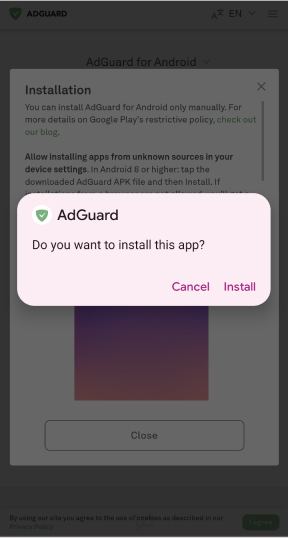
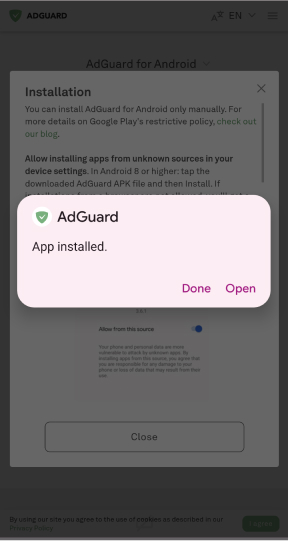
Open the file manager app.Find your flash drive.Select adguard_tv.apk.When prompted, tap Install.Tap Done or Open when finished.Launch AdGuard for Android TV:
Open AdGuard from the app list.Follow the on-screen instructions to complete the setup.You’re all set! AdGuard is ready to use.